SQL Server Admin
T-SQL Articles

December 29, 2011

Most Popular SQL Server Articles in 2011

0 comments


With 2012 fast approaching and 2011 drawing to an end, we've put together our list of the Most Popular SQL Server articles on SQLServerCurry.com this year.

I would like to thank each one of you who has visited my blog or contributed to it by submitting a Guest post, Subscribing to RSS Feed, by joining me on Twitter, retweeting posts or promoting the articles and giving regular feedbacks via rating, comments or Emails. A special note of thanks to Madhivannan and Pravin Kumar for their contributions.

Here are some articles that were liked the most by readers like you. Have a very Happy New Year 2012!

SQL Server Administration Articles


T-SQL Articles


  Feedback:

December 24, 2011

Assign Result of Dynamic SQL to a Variable in SQL Server

0 comments


Suppose you have dynamic sql that returns a single value and you want to copy it to a variable. For eg: you want the total count of the table copied to a variable. This is possible in SQL Server using the following methods:

Method 1 : Use sp_executesql system stored procedure

declare @counting int
execute sp_executesql
          N'select @count=count(*) from sys.objects',
          N'@count int output',
          @count =@counting output;
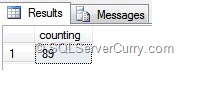
select @counting as counting


In the above method, count is assigned to the variable @count which outputs to @counting

Method 2 : Use table variable

declare @t table(counting int)
declare @counting int
insert into @t
exec('select count(*) from sys.objects')
select @counting=counting from @t
select @counting as counting


The above t-sql code copiesthe  resultset to table variable @t and the count is copied to variable @counting

OUTPUT

dynamic-sql-variable


  Feedback:

December 19, 2011

Why is RAID So Important for Databases?

0 comments


A good server design has no, or very few, single points of failure. One of the most common server component that fails, are disks. So data redundancy becomes essential to recoverability. Redundant Array of Independent/Inexpensive Disks (RAID) is a disk system that provides better fault-tolerance by making use of redundancy of disk(s).

RAID is a disk system that contains multiple disk drives, called an array, to provide greater performance, fault tolerance, storage capacity, at a moderate cost. While configuring your server system, you typically have to make a choice between hardware RAID and software RAID for the server’s internal disk drives

RAID System

RAID systems are widely used as storage solutions to get the best I/O performance, depending whether the application is write intensive or read intensive. DBA RayRankins mentions in his book that for database-related applications, in order to minimize disk head movement and maximize I/O performance, it’s a good practice to spread random I/O’s (data changes) and sequential I/O’s (for the transaction log) across different disk subsystems. I agree and endorse his view, as SQL Server, or for that matter any other database, is very much an I/O intensive system.

I will be using SQL Server as an example to explain the importance of RAID in databases, however you can implement these concepts in your choice of database. The concepts more or less, remain the same

Although RAID is not a part of a database like SQL Server, implementing RAID can directly affect the way SQL Server performs.There are many RAID arrays available such as RAID 0, RAID 1, RAID 3, RAID 4, RAID 5, RAID 6, RAID 10 and RAID 01. In this article, we will discuss the ones you will likely encounter as a SQL Server DBA i.e. RAID levels 0, 1, 5 and 10 and also  discuss their advantages and disadvantages from a fault tolerance and performance perspective

Note: RAID is not a replacement for backups. Backups are very essential for any system.

Different RAID Levels (Advantages and Disadvantages)

We will discussing only RAID 0, 1, 5 and 10 (database perspective) .

RAID 0 – Also known as Disk Striping, RAID 0 does not provide redundancy or fault tolerance but instead writes data to two drives, in an alternating fashion. This provides the best read write I/O performance. If you had 8 chunks of data, for example, chunk 1, 3, 5, and 7 would be written to the first drive, and chunk 2, 4, 6, and 8 would be written to the second drive, but all in a fixed (sequential) order. RAID 0 has a simple design, easier to implement and no overheads for parity. The drawback is that any piece of data is on only one disk, so if one disk fails, data stored within those disks are lost.

RAID 1- Also known as Disk Mirroring, RAID 1 provides a redundant, identical copy of a selected disk and thus provides good fault tolerance. It can be implemented with 2 drives. The disadvantage is that it has a big storage overhead and a high cost/capacity ratio

RAID 5 - Also known as Disk Striping with Parity, stripes data across multiple drives and writes parity bits across drives. Data redundancy is provided by the parity information. It can be implemented with 3 or more disks and is a popular choice amongst DBA’s. Since data and parity information are arranged on the disk array, two types of information are always on different disks. If one disk fails, just replace it with a new disk and the array rebuilds itself. RAID 5 has a higher read rate and makes good use of capacity. The drawback of RAID 5 is slower write rates and slow rebuild times.

RAID 10 - Also known as mirroring with striping, RAID 10 is a combination of RAID1 + RAID0. RAID 10 uses a striped array of disks that are then mirrored to another identical set of striped disks. This array level uses at least four hard disks and additional disks must be added in even numbers. The data is first placed into mirrored pairs at the lower level. Next, the controller selects a member from each mirrored pair and stripes the data into a new logical volume. Since RAID 10 writes in a random fashion, it provides best performance with a write-intensive application (like video editing). The drawback is that it is expensive.

Which RAID is Suitable for my Database?

Now that you have an overview of RAID levels, let’s look at which RAID is suitable for a database. The answer to this question depends on a variety of factors. Do you want availability, performance or cost? What are your requirements for fault tolerance and performance? Here’s a quick snapshot of the performance and fault tolerance provided by RAID

sqlserver-raid-performance

When it comes to a database like SQL Server, no one RAID level will suit your need. In most cases, SQL Server performs large reads and small writes. So for databases, where write operations are more, RAID 5 is not a good choice. On the contrary, RAID 10 is a good option for databases with more write operations.

Here are some points and best practices to keep in mind while deciding the RAID system for your database.
  • Your Data, Logs, tempdb, and backups should be on separate physical drives or a set of disks (array).
  • RAID1 is often chosen to store operating systems, binaries, index file groups and database transaction log files. Critical to log and index performance is fault tolerance and a good write speed.
  • Since log file are written sequentially and are read only for recovery operations, recommended RAID for Log Files is RAID 1 or 10. If your RAID 1 is at a 100% usage, choose RAID 10 for better performance.
  • For data files with random access and read heavy data volumes, striping is important. So recommended RAID is 5 or 10.
  • For data files which require good write performance, RAID 10 is recommended. Use a battery backed caching RAID controller for better write performance
  • For tempdb files with good read/write performance RAID 0, 1 or 10 is recommended. Although tempdb contains temporary data and DBA’s often go in for RAID 0 for tempdb, keep in mind that SQL Server requires tempdb to carry out many of its activities. So if you want your system to be always available, rethink RAID 0.
  • Putting log files or tempdb on a RAID 5 array is not recommended, since RAID 5 does not perform well for write operations. DBA's although have conflicting opinions over this point.
  • Choose small fast drives, over large slow drives.
Make sure you do your own research, so you can make an informed decision! In a real scenario, you may not have the luxury of deciding your server configurations due to the cost associated with it. So keeping these points in mind, may help you in such scenarios.

Please use the comments section and share your opinions!


  Feedback:

December 14, 2011

Deleting Leading Zeros in a String (SQL)

2 comments


A common issue while importing data from different source into SQL Server is often numbers get prefixed with zeroes. If you want to delete these leading zeroes in a string, you can use the following methods:

Method 1 : CAST to Bigint

declare @s varchar(100)
set @s ='0000004007340007402100'
select cast(@s as bigint)


CASTing the string to Bigint will automatically delete the leading zeroes

sql-delete-zeroes

Method 2 : Use Replace function

declare @s varchar(100)
set @s ='0000004007340007402100'
select replace(ltrim(replace(@s,'0',' ')),' ','0')


The T-SQL code shown above first replaces all zeroes to a single space. The LTRIM function deletes all leading spaces and the second replace function, replaces all spaces to zeroes, so that all leading zeroes are deleted.

OUTPUT

sql-delete-zeroes


  Feedback:

December 09, 2011

Find Last Run Query in SQL Server

1 comments


Have you ever wondered what SQL query was last executed by your users across all SQL Server databases on your server? I have seen some solutions on the internet that use the sysprocesses view to retrieve this information. In this post, I will show you how this information can be retrieved better using Dynamic Management Views.

Please use this query:

SELECT conn.session_id, sson.host_name, sson.login_name, 
 sqltxt.text, sson.login_time,  sson.status
FROM sys.dm_exec_connections conn
INNER JOIN sys.dm_exec_sessions sson 
ON conn.session_id = sson.session_id
CROSS APPLY sys.dm_exec_sql_text(most_recent_sql_handle) AS sqltxt
ORDER BY conn.session_id

Here I have utilized the sys.dm_exec_connections Dynamic Management View, in conjunction with the sys.dm_exec_sessions DMV and sys.dm_exec_sql_text Dynamic Management Function (DMF) to return the last query executed against all SQL Server databases, in that server.

Here’s a quick overview of what these DMV’s and DMF do
sys.dm_exec_connections - Returns information about the connections established to this instance of SQL Server and the details of each connection

sys.dm_exec_sessions - Returns one row per authenticated session on SQL Server. sys.dm_exec_sessions is a server-scope view that shows information about all active user connections and internal tasks. This information includes client version, client program name, client login time, login user, current session setting, and more

sys.dm_exec_sql_text - Returns the text of the SQL batch that is identified by the specified sql_handle

In the last statement, we are passing the value contained in the most_recent_sql_handle column of this DMV to the sys.dm_exec_sql_text DMF.  The DMF returns the text of the sql query, whose sql_handle we passed to it.  This sql_handle that we passed, uniquely identifies the query.

Here’s the output

sql-last-run-query


  Feedback:

December 04, 2011

Activity Monitor in SQL Server

0 comments


Activity Monitor is a handy tool in SQL Server to quickly see performance hot spots in the server, network and database activity. One of the most commonly performed tasks in Activity Monitor is to kill a stubborn connection that will not release its resources. In SQL Server 2008, this tool has undergone a major facelift from the 2005 version and helps in tracking your SQL server performance even better than before.

To view Activity Monitor in SQL Server 2008, right-click the instance name and choose Activity Monitor or click the Activity Monitor icon on the standard toolbar.

image

In SQL Server 2005, Activity Monitor can be viewed in SSMS by connecting to the server with Object Explorer, expanding ‘Management’, and then double-click ‘Activity Monitor’.

Once opened, the Activity Monitor Dashboard View contains four graphs which can help identity any abnormal activity in the Database. The graphs include % Processor Time (SQL Server), Waiting Tasks, Database I/O and Batch Requests. The default graph refresh rate is 10 seconds, but you change that easily by right-clicking any of the four graphs and selecting the appropriate refresh interval.

This snapshot is very helpful to get a quick performance snapshot without the need to use other monitoring tool for the same purpose.

SQL Activity Monitor

This dashboard also contains expandable/collapsible panes to view detailed information about Processes, Resources, I/O and Expensive Queries. Just click on the expand button to the right of each pane to view the detailed information. Here’s a quick overview of the different graphs and what they show.
Processor Time - The percentage of elapsed time that the processor spends to execute non-idle threads for the instance across all CPUs. The Processes pane gives information on what processes are running, what resources are being utilized etc. You can even right-click a process and choose Trace Process in SQL Server Profiler. Presto!
Waiting Tasks - The number of tasks that are waiting for processor, I/O, or memory resources. The Resource Waits pane details the processes waiting for other resources on the server.  It shows the latest information from several DMVs like the sys.dm_os_wait_stats
Database I/O – Information on data and log files for system and user databases. Provides the transfer rate in MB/Sec, of data from memory to disk, disk to memory, or disk to disk. The pane contains information to quickly detect a contention in disk I/O.
Batch Requests/sec - The number of SQL Server batches that are received by the instance. The Expensive Query pane lets you find and tune expensive queries. You can even right-click any query and view its graphical execution plan. Also see Find the Most Time Consuming Code in your SQL Server Database
Note: To view the Activity Monitor in SQL Server, a user must have VIEW SERVER STATE permission. Also make sure you close the Activity Monitor tool in SSMS when it is not required.


  Feedback:
 

Copyright © 2009-2011 All Rights Reserved for SQLServerCurry.com by Suprotim Agarwal | Terms and Conditions