Temporary Tables - SQL Server vs MySQL

Continuing my series on how same things can be done differently in SQL Server and MySQL, in this post, we will see temporary table support in SQL Server vs MySQL.

We may often need to create a temporary table while processing data to provide a workspace for storing intermediate results. Both SQL Server and MySQL support temporary tables.

In SQL Server, all temporary tables should be prefixed by the # sign

Consider this table

create table #test
(
id int,
names varchar(100)
)


insert into #test(id, names)
select 1,'test'

select * from #test

We can drop this table by using a DROP command

DROP table #test

In MySQL, we have to use the keyword 'temporary' when creating a temporary table

Consider the following code

create temporary table if not exists test
(
id int,
names varchar(100)
)


insert into test(id, names)
select 1,'test'

select * from test

The above creates a temporary table called test in the current session if it is not already available. To drop a temporary table in MySQL, we can use the following code

drop temporary table test

Dense Rank - MySQL vs SQL Server

                                                                                    
Continuing my series on how same things can be done differently in SQL Server and MySQL, in this post, we will see how to implement Dense Rank in SQL Server vs MySQL.

Generating a dense_rank is a common requirement when showing resultsets. In SQL Server, starting from version 2005, we can make use of the dense_rank() function. Dense_rank() will generate the serial number for each set of values and keep the same number if the value is duplicated

Consider the following set of data

create table test(names varchar(100))
insert into test
select 'Suresh' union all
select 'Ramesh' union all
select 'Kant' union all
select 'Jerald' union all
select 'Clara' union all
select 'Ramesh' union all
select 'Kant' union all
select 'Jerald' union all
select 'John'


dense-rank-data

SQL Server

Using the dense_rank()  function, we can generate a serial number and reset for each name

select dense_rank() over (order by names) as sno,names from test

MySQL

Using a variable, we can generate the serial number, and use another variable that keeps same value for duplicates

set @sno:=0;
set @names:='';
select @sno:=case when @names=names then @sno else @sno+1 end as sno,@names:=names as names from test
order by names;


In the above example, variable @sno gets incremented by 1 for each set of values thus keeping the same value for duplicates.

result

Reset Row Number For Each Group - SQL Server Vs MySQL

Continuing on my SQL Server vs MySQL series, we will see how same things can be done differently in SQL Server and MySQL

Generating a row number  or a serial number and resetting it on each group is a common requirement when showing result sets. In SQL Server, starting from version 2005, we can make use of the row_number() function with the partition clause

Consider the following set of data
sql-data

SQL Server


Using the row_number() function, we can generate the serial number and reset for each names

select row_number() over (partition by names order by names) as sno,names from test


MySQL


Using a variable, we can generate the serial number, and use another variable that resets first variable for each group

set @sno:=0;
set @names:='';


OUTPUT


result

Generate Row Number – SQL Server vs MySQL

In this series, we will see how same SQL tasks can be achieved differently in SQL Server and MySQL. Generating a row number  or a serial number is a common requirement when showing the resultsets.

In SQL Server, starting from version 2005, we can make use of the row_number() function

Consider the following set of data
sql-row-number-data

SQL Server


Using the row_number() function we can generate a serial number as follows:

select row_number() over (order by names) as sno,names from test

MySQL


Using a variable in MySQL, we can generate a serial number as follows:

set @sno:=0;
select @sno:=@sno+1 as sno,names from test
order by names;


In the above example, variable @sno gets incremented by 1 for each row.

Stay tuned for more on MySQL vs SQL Server posts.

Common Myths Around SQL Server Best Practices

Idera has a bunch of Free SQL Server Webcasts that you can watch and learn from. One that particularly caught my attention was the webcast about SQL Server Myths Debunked…Or Are They? 

Numerous SQL Server experts have done a great job of debunking many of the common myths that crop up around SQL Server best practices and usage. However in some cases, the debunking of those myths creates unintended consequences – we ignore the underlying truth which started the myth in the first place.

SQL Server expert Michael K. Campbell does a survey of misperceptions that have arisen from commonly debunked SQL Server myths. This free webcast shows you how shrinking and using multiple files can be a best practice, what AWE and locking files in memory really means, along with other best practices that you may be missing out on because of misconceptions.

In addition to this webcast, I recommend the following webcasts:
  • What Are You Waiting For?
  • Putting a Better SQL Server in Production
  • Under The Hood with SQL Server Fundamentals
  • Learning to Hate the SMO: A PowerShell Love Story
  • TempDB: Performance and Manageability
  • 5 Common High-Availability Mistakes
  • Common SQL Server Security Mistakes
  • Top 10 SQL Server Backup Mistakes and How to Avoid Them

Find out Long Running query using sp_who2 with Dynamic Management Views‏ (DMV)

There are many ways to find out why your SQL server is performing slow. Suppose you know that your server is responding slowly while executing queries and you want to find out the query that takes a lot of time to execute. If you want to find out slow queries, you can use dynamic management views from version 2005 onwards. However you can still use the old system stored procedure sp_who2 along with management views, to find this info.

Run the following code

EXEC sp_who2

and see the result shown below. Find out rows with runnable status with highest CPUTime.

long_run1

Sp_who2 will not display the text of the query, so we need to find out the text using dm_exec_requests and dm_exec_sql_text management views. The view dm_exec_requests will show the text of the query. All we need to do is to find out spid from the result of sp_who2 and filter it in dm_exec_requests using session_id column. The following code displays the text of the query.

SELECT
        sql.text AS statement_text
FROM
        sys.dm_exec_requests  AS req
CROSS APPLY sys.dm_exec_sql_text(req.sql_handle) as sql
WHERE
    req.session_id=52

Similarly you can also use dynamic management views to find out various root causes for performance issues.

Using sys.dm_os_performance_counters to measure Transactions Per Second

Performance Monitor tool in SQL Server represents aspects of system performance, such as CPU Usage % , Memory Paging etc. The sys.dm_os_performance_counters Dynamic Management View exposes data of all performance counters for the particular instance of SQL Server. This view is extremely useful when you have to present the performance data of your database in your dashboard.

Note: This article has been updated and can be found here http://www.sqlservercurry.com/2013/09/measure-transactions-per-second-in-sql.html

SQL Server 2012 Free Cook Book and Training

Microsoft has created some free content designed to get started with SQL Server 2012.  You can use the SQL Server 2012 Early Adoption Cook Book Wiki at http://social.technet.microsoft.com/wiki/contents/articles/6967.sql-server-2012-early-adoption-cook-book.aspx. You can bookmark this link as Microsoft to update this wiki with the latest SQL Server 2012 information as and when it is available.

Microsoft also released the SQL Server 2012 Developer Training Kit which includes technical content including labs, demos and presentations designed to help you learn how to develop SQL Server 2012 database and BI solutions.

You can download SQL Server 2012 Training Kit over here

Declaring Length for VARCHAR and NVARCHAR datatypes IS Necessary

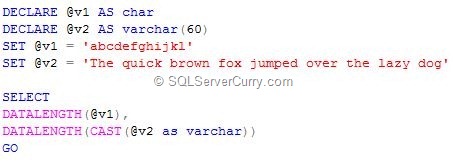
I have seen some new SQL Server developers declaring Varchar and Nvarchar data types without specifying a length, since it is optional. Although this works in some other programming languages like C#, SQL Server behaves differently and this is a bad practice overall. Let us see with an example of what’s wrong with not declaring a length for the Char or Varchar data type.

Consider the following t-sql code

varchar-length

OUTPUT

image

Surprised seeing the output? When a length is not specified while declaring a variable, the default length is 1 and when a length is not specified when using the CAST and CONVERT functions, the default length is 30. That’s the reason you get the output you see above.

Note: Try doing the same when you create a table with a CHAR column, without specifying the length.

To get the desired results, rewrite the t-sql code in the following manner:

DECLARE @v1 AS char(30)
DECLARE @v2 AS varchar(60)
SET @v1 = 'abcdefghijkl'
SET @v2 = 'The quick brown fox jumped over the lazy dog'

SELECT
DATALENGTH(@v2),
DATALENGTH(CAST(@v2 as varchar(60)))
GO


Now you get the desired results

image

Another place where you got to be careful is while creating stored procedures with parameters. If you have created a stored procedure that accepts a parameter with a VARCHAR datatype with no length, you will be in for a surprise to learn that SQL Server silently truncates the string and adds some leading characters.

Overall, always specify a length for the CHAR, VARCHAR, NVARCHAR and similar data types. It’s a good practice!

Restoring SQL Server Database: Points to Consider

Here are some important points to consider while restoring a database backup. Let us first create a sample database named test using the following code

sql-restore

A new database named test will be created in your server and data and log files are created in the H: drive.

Let us assume that you regularly take backup of this database using the below code:

backup database test to disk='h:\test.bak'

Now if you want to create another database or restore this test database to a new database named testing, you can use the following code

restore database testing from disk='h:\test.bak'

However executing the code above will give you the following error

Msg 1834, Level 16, State 1, Line 2
The file 'h:\test_dat.mdf' cannot be overwritten.  It is being used by database 'test'.
Msg 3156, Level 16, State 4, Line 2
File 'test_dat' cannot be restored to 'h:\test_dat.mdf'. Use WITH MOVE to identify a valid location for the file.
Msg 1834, Level 16, State 1, Line 2
The file 'h:\test_log.ldf' cannot be overwritten.  It is being used by database 'test'.
Msg 3156, Level 16, State 4, Line 2
File 'test_log' cannot be restored to 'h:\test_log.ldf'. Use WITH MOVE to identify a valid location for the file.
Msg 3119, Level 16, State 1, Line 2
Problems were identified while planning for the RESTORE statement. Previous messages provide details.
Msg 3013, Level 16, State 1, Line 2
RESTORE DATABASE is terminating abnormally.


This error occurs because the data and log files are currently being used by the database test. So you need to give different names for those files while restoring, as shown below

restore database testing from disk='h:\test.bak'
with
move 'test_dat' to 'h:\testing.mdf',
move 'test_log' to 'h:\testing.ldf'


The above code will work fine and new database will be created with the name testing.

Just be aware of this point while restoring a backup of existing database!